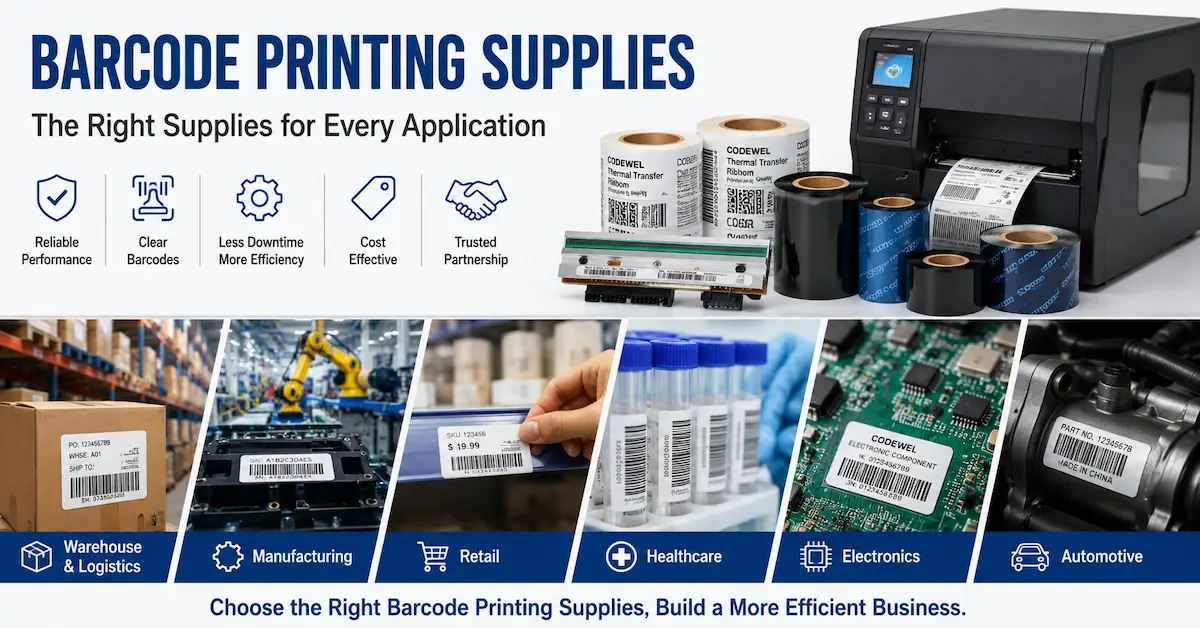

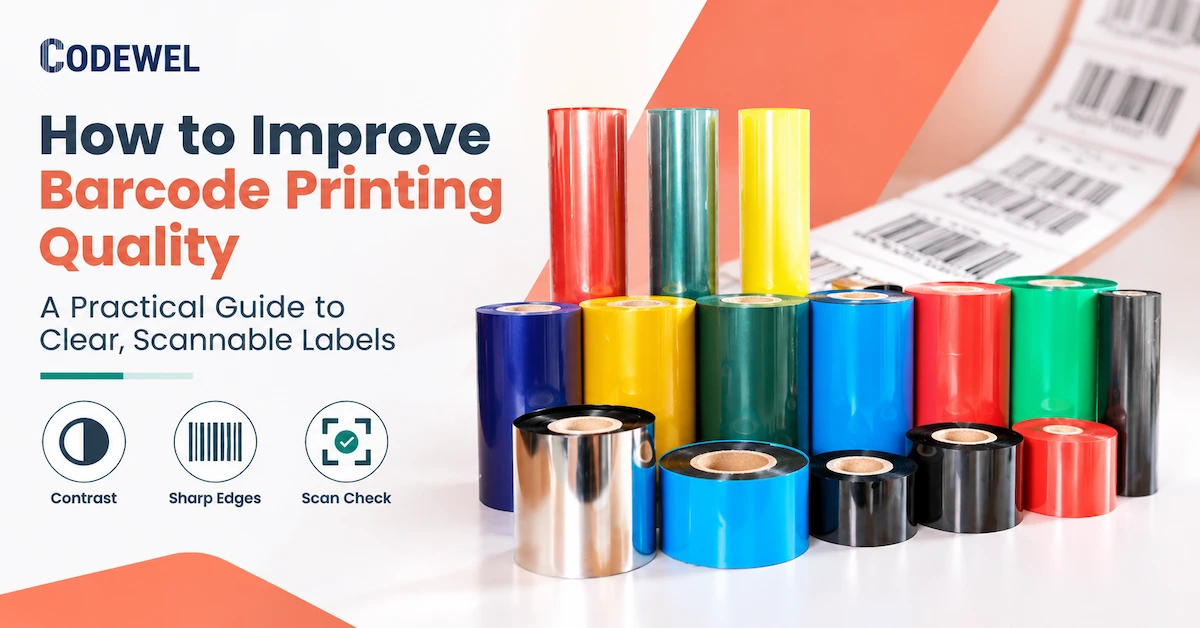
How to improve barcode printing quality? The short answer
Unreadable barcodes are rarely caused by one setting alone. A light symbol can result from low energy, excessive speed, a poor ribbon-to-label match, contamination, uneven pressure, or an incorrect print mode. A barcode that looks dark can still fail because bars are too wide, quiet zones are missing, the image was scaled, the label surface reflects light, or the scanner is reading a different condition than the operator's visual check.
This guide is for production engineers, warehouse managers, quality teams, printer operators, system integrators, and procurement buyers. It focuses on a single commercial problem: how to improve barcode printing quality consistently enough to reduce reprints, rejected cartons, manual data entry, and line interruptions. The goal is not to make every label darker. The goal is to produce a symbol that is correctly encoded, physically sharp, durable for the application, and reliably scannable.
What defines good barcode print quality?
Before changing equipment, define what “good” means for the next process. A barcode may be acceptable for a warehouse scanner but not for a high-speed camera, a verifier, a small medical label, or a symbol that must survive abrasion and chemicals. The acceptance rule should be linked to the real use case, label, scanner, and exposure.
| Quality dimension | What to inspect | Why it matters |
|---|---|---|
| Data correctness | Encoded value, human-readable text, date, lot, serial, and template revision | A perfectly printed wrong code is still a failed label |
| Symbol geometry | Bar width, module size, height, quiet zone, aspect ratio, and scaling | Small geometric errors can reduce decoding reliability |
| Contrast | Dark bars against the actual label background | Scanners need adequate contrast under the operating light and angle |
| Edge definition | Sharp bar edges without spreading, voids, streaks, or jagged pixels | Clean edges support repeatable decoding and camera inspection |
| Uniformity | Consistent darkness across the label width and across repeated labels | Variation can point to pressure, contamination, media, or printhead issues |
| Durability | Resistance to handling, rubbing, chemicals, heat, moisture, or storage | A barcode must remain usable after the next process step |
| Process stability | Failure rate, reprints, roll changes, and setting adjustments | Stable output matters more than one good sample |
For routine troubleshooting, separate data failure, print failure, and scan failure. Check the encoded content first. Then inspect the printed symbol. Finally, test it with the scanner or verifier used by the customer or downstream operation. This sequence prevents a team from changing ribbon or printhead settings to compensate for a bad template or an incorrect barcode value.
Step 1: Check the barcode artwork and data before the printer
Confirm the encoded value
Start with the data source and label template. Compare the human-readable text with the value returned by the scanner or verifier. Check that the application is not truncating leading zeros, converting dates, adding spaces, removing check digits, or reusing a previous serial number. If the problem appears only on some product codes, review the data mapping before adjusting the hardware.
Protect the quiet zone and symbol proportions
Leave clear space around the barcode. Do not place a line, border, logo, text, seam, or label edge inside the quiet zone. Avoid stretching a barcode to fit a design without checking the resulting module width and height. A graphic designer may make a symbol look balanced while making it harder for a scanner to decode.
Match the symbol to the print resolution
Printer resolution affects the dot geometry available for a barcode. Codewel's printhead FAQ describes common 203 DPI, 300 DPI, and 600 DPI options, with 203 DPI commonly used for basic logistics labels, 300 DPI for finer barcodes and small text, and 600 DPI for high-precision images or micro text. These are selection references, not automatic quality guarantees. The chosen resolution must match the printer, artwork, label size, and scanner.
When a very small barcode is required, test the actual smallest module, not only a large sample printed at the top of the label. If the design cannot be printed and verified reliably at the required size, change the label layout, symbol size, resolution, or application requirement before changing consumables.
Step 2: Match printer mode, resolution, and print speed
Confirm direct thermal or thermal transfer mode
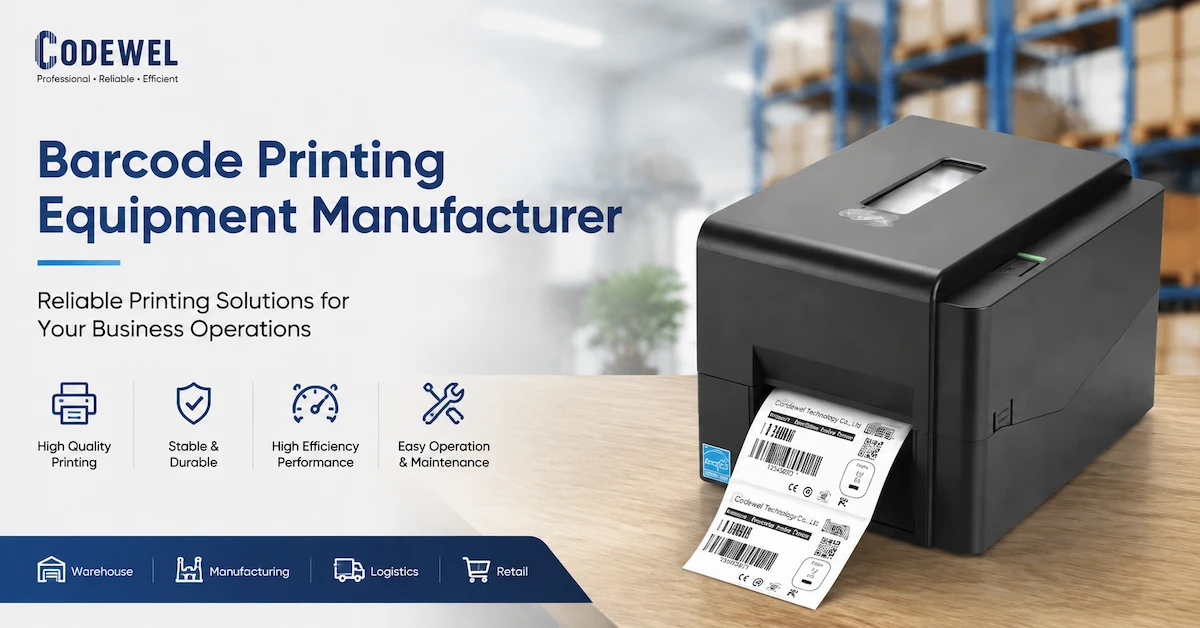
Direct thermal printing uses heat-sensitive media and does not use ribbon. Thermal transfer printing uses a ribbon to transfer ink to the label. Using the wrong mode or media can create pale output, background darkening, premature fading, or unstable contrast. Before troubleshooting a thermal transfer label, confirm that the printer is configured for thermal transfer and that the ribbon is loaded in the correct path and winding direction.
Choose resolution for the smallest required feature
A 203 DPI printhead can be suitable for larger logistics and shipping symbols. A 300 DPI printhead may be more appropriate when the label contains smaller text or a denser symbol. A 600 DPI printhead may be necessary for very fine graphics or micro text. Higher resolution does not solve incorrect artwork, poor media, contamination, or insufficient contrast, so use a controlled sample to verify the choice.
Reduce speed when transfer or edge quality is unstable
High speed reduces the time available for heat transfer. If the symbol is too light, the bars are incomplete, or the edges become irregular, test a slower speed while keeping the label, ribbon, artwork, and printhead constant. A slower but stable line may produce a lower total cost than a fast line with frequent reprints and manual inspection.
Do not evaluate speed using only the printer's headline specification. Measure the complete cycle, including data retrieval, printing, label application, scanning, rejection, and reprint. The correct speed is the one that meets the actual barcode acceptance rule with controlled variation.
Step 3: Select the correct ribbon for the label
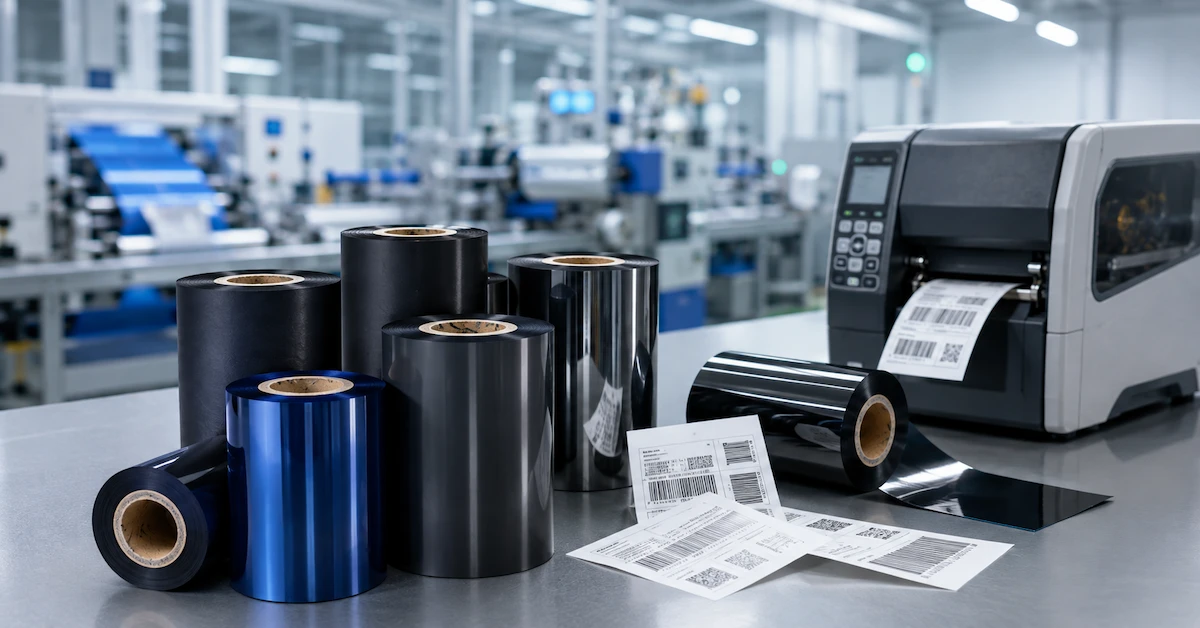
Ribbon formulation is one of the highest-impact variables in barcode print quality. It controls how the image transfers, how much energy is required, how sharply the bar edges form, and how well the finished label resists handling. The ribbon must be matched to the label face material and the application exposure, not selected only by printer brand or price.
| Label or application condition | Formulation to evaluate first | Quality checks |
|---|---|---|
| General paper file, package, or barcode label | Wax | Darkness, bar edge clarity, low-energy transfer, smear resistance, and residue |
| Coated paper, waybill, ticket, warehouse label, or moderate handling | Wax-resin | Contrast, edge sharpness, rub resistance, speed window, and coating compatibility |
| Synthetic label, chemical package, electrical part, cable, or severe abrasion | Resin | Bonding, scratch resistance, solvent resistance, heat exposure, and energy requirement |
| Wash-care or textile label | Wash-care resin | Wash, dry-cleaning, ironing, temperature, textile surface, and scan performance |
Codewel's CW502 thermal transfer wax ribbon page lists a general-purpose wax formulation with 70 C ink melting point, color density of at least 2.1, listed printing speed of 0-6 IPS, 110 mm x 300 m as one published configuration, and 1/2-inch, 1-inch, or customized core options. The page also lists 60 C heat resistance, 12 scratch resistance, and 20 solvent resistance. These published fields provide a useful test specification for general paper labels; they should not be treated as a universal rating for every label.
For more handling resistance, the published CW630 premium wax-resin record lists a 72 C ink melting point, 0-10 IPS listed printing speed, 90 C heat resistance, 95 scratch resistance, and 60 solvent resistance. For demanding synthetic or chemical-label conditions, the published CW745 premium resin record lists a 100 +/- 3 C melting point, 0-6 IPS printing speed, 200 C heat resistance, and 100 values for scratch and solvent resistance. These are supplier-published specifications. The buyer still needs a print and scan test using the actual printer and label lot.
The best ribbon is usually the formulation that reaches the required contrast and durability at a stable energy setting without creating excessive residue or edge spread. A stronger resin ribbon is not automatically better for a low-risk paper shipping label, and a low-cost wax ribbon is not appropriate for a chemical or abrasion-heavy application simply because it prints black in a first visual check.
Step 4: Clean and align the printhead and platen
Clean the printhead at the right interval
Dust, adhesive, ribbon coating, and label debris can block heat transfer and create repeating light lines. Codewel product FAQs describe cleaning after each ribbon replacement or at the end of a regular workday, more frequent cleaning for high-load use, and immediate cleaning when print quality deteriorates. The exact interval should follow the printer's instructions and the real contamination level of the line.
Use the approved cleaning pen or lint-free material and the approved solvent for the printer. Do not scrape the heating line with a hard tool, touch it with bare fingers, or restart before the surface is dry. Record the cleaning event and compare a controlled diagnostic sample before deciding that the printhead is damaged.
Check printhead pressure
Uneven pressure can make one side of a label lighter than the other, create a repeating vertical band, or accelerate localized wear. Confirm that the printhead is seated correctly and that pressure adjustments are balanced for the label width. Do not compensate for a mechanical pressure problem by increasing darkness across the entire label.
Inspect the platen roller and media path
A worn or contaminated platen changes contact with the printhead. A damaged liner, label edge, guide, or roller can create friction and repeatable defects. When a defect appears at the same position on every label, compare that position with the printhead, platen, ribbon, and label path. When the defect moves after changing the roll, suspect the ribbon or label before the printer.
Step 5: Set darkness and speed from the lowest stable point
Darkness, heat, or energy settings should be high enough for the symbol to meet the acceptance rule and no higher than necessary. Excessive energy may cause bar growth, smearing, ribbon sticking, background marking, and unnecessary printhead stress. Insufficient energy may cause incomplete bars, weak contrast, or poor transfer.
Use a small controlled matrix rather than changing settings randomly. Print the same artwork at two or three speeds and two or three energy levels. Keep the label and ribbon lot constant. Record the scanner or verifier result, visual density, edge quality, and any residue. Select the lowest setting that meets the requirement with a reasonable operating margin.
| Symptom | Likely setting or system cause | Controlled next action |
|---|---|---|
| Bars are pale or incomplete | Energy too low, speed too high, poor transfer, contamination, or pressure issue | Clean and inspect first, then test lower speed or slightly higher energy with the same media |
| Bars are spreading or merging | Energy too high, label coating mismatch, or excessive heat | Reduce energy, confirm ribbon formulation, and inspect the symbol size |
| Image smears after printing | Ribbon mismatch, insufficient bonding, excessive heat, or handling before cooling | Test the appropriate wax-resin or resin option and check the label surface |
| Output varies across the web | Uneven pressure, platen condition, printhead alignment, or media tracking | Check mechanical contact and run a full-width diagnostic pattern |
| Print quality drops after a roll change | Different material, width, winding, lot, or storage condition | Compare the new roll specification with the approved sample |
Step 6: Verify with the real scanner, verifier, and exposure
A barcode is not finished when it looks black. Scan the actual production label with the device used downstream. If a formal verifier or grade requirement exists, use that named method and acceptance limit. If the customer has not specified a formal grade, at least define the scanner, distance, angle, lighting, number of repeated labels, and pass/fail rule.
Verify immediately after printing
Check the encoded data, scan reliability, print position, contrast, and label completeness. Scan multiple labels across the roll rather than one sample from the beginning. Include the most difficult artwork and the smallest symbol used in normal production.
Verify after handling or exposure
Repeat the check after the relevant use condition. A logistics label may be rubbed, stacked, folded, exposed to condensation, or scanned in a dim warehouse. An industrial label may see oil, alcohol, solvent, heat, sunlight, or repeated handling. Use the same label material, ribbon, printer setting, and exposure method that the finished product will encounter.
Record failures as data
Record the printer, printhead, ribbon, label lot, artwork revision, speed, energy, operator, date, scan result, failure reason, and reprint action. A failure record can reveal that a quality problem follows one material lot, one station, one operator setting, or one label template. Without these fields, teams often replace components without learning why the failure occurred.
Step 7: Use a structured fault-isolation sequence
When a label fails, change one variable at a time and preserve the failed sample. A good sequence moves from low-cost, reversible checks to component replacement. This keeps the diagnosis defensible and prevents several changes from hiding the original cause.
- Confirm the data. Scan the symbol and compare the result with the source record and human-readable text.
- Check the artwork. Confirm module size, quiet zone, orientation, scaling, position, and template revision.
- Confirm printer mode. Verify direct thermal or thermal transfer mode, resolution, media sensor, and ribbon path.
- Inspect the consumables. Check label face, liner, ribbon material, width, length, core, ink side, winding, lot, and storage.
- Clean the print path. Clean the printhead and platen according to the printer procedure; inspect guides and rollers.
- Check pressure and alignment. Look for one-sided density, tracking issues, gaps, wrinkles, or a repeating defect.
- Run a setting matrix. Compare speed and energy under controlled conditions using the same artwork and media.
- Verify the result. Use the real scanner or verifier immediately and after the relevant exposure.
- Replace the suspected part only after evidence. Record the removed part, counter, defect, test result, and replacement configuration.
This sequence is also useful for supplier discussions. Instead of reporting “the printer quality is bad,” provide a sample, printer model, resolution, label material, ribbon details, settings, defect location, scanner result, and actions already completed. A supplier can then recommend a compatible ribbon, printhead, or label with a defined test plan.
How Codewel's published product and factory evidence supports quality decisions
Hangzhou Codewel New Materials Co., Ltd. identifies itself on its published company page as a Hangzhou, China company integrating R&D, production, and marketing for barcode labels, thermal transfer ribbons, thermal transfer printers, printheads, barcode scanners, and related products. The page states that the company has invested in more than 10 coating and cutting TTR production lines, operates a production base exceeding 6,000 square meters, reports annual output above 100 million square meters, and exports to more than 100 countries.
The same page describes a ribbon factory with precision quality control for barcode printing durability and a printhead workshop developed by engineers from Taiwan. It also describes 300 DPI printheads, speeds exceeding 10 inches per second, a dust-free workshop, and nano-coating technology. These are company-published manufacturing and capability statements. They help answer who the supplier is and what it produces, but they do not remove the need to test the exact printer, ribbon, label, and printhead combination for the buyer's application.
Codewel's printing consumables range and printhead solutions category provide a route to compare the physical components that affect quality. For a production buyer, the useful request is not simply “send your best product.” It is “confirm this printer model, resolution, label material, ribbon formulation, width, speed, energy range, sample result, packaging, MOQ, lead time, and warranty in writing.”
How to write a barcode printing quality RFQ
A clear RFQ turns a visual complaint into a testable requirement. Send the supplier the actual label or a representative sample, the barcode artwork, and the printer information. Ask the supplier to return a line-by-line confirmation instead of a general brochure.
- Application and industry
- Printer brand, exact model, and resolution
- Direct thermal or thermal transfer mode
- Label face material, adhesive, liner, and dimensions
- Barcode symbology, module size, and smallest symbol
- Human-readable text and artwork revision
- Ribbon formulation, width, length, core, ink side, and winding
- Normal speed, darkness, or energy setting
- Required scanner, verifier, or grade method
- Exposure to rubbing, chemicals, heat, moisture, or sunlight
- Monthly volume and operating shift
- Current failure rate, reprint rate, or defect sample
- Packaging, carton quantity, and lot identification
- Sample quantity and approval method
- MOQ, current availability, delivery window, and destination
- Warranty, change control, and replacement support
Ask the supplier to separate published specification, recommended configuration, sample result, and commercial terms. Price, stock, MOQ, and lead time can change with size, quantity, customization, freight, and production schedule. A current quotation and approved sample should control the purchase, not an old product-page value.
Common mistakes that reduce barcode print quality
Making the label darker instead of finding the cause
Increasing darkness can temporarily hide weak transfer, but it can also spread bars, create residue, and stress the printhead. Clean, inspect, and verify the ribbon and label before increasing energy.
Choosing a ribbon by printer brand only
A Zebra, TSC, or other printer brand does not define the label face, application exposure, ribbon formulation, width, core, winding, or required durability. Select the ribbon from the complete print system.
Testing only one label from one roll
One good label does not demonstrate process stability. Test the beginning, middle, and end of a roll when appropriate, multiple labels, the most difficult artwork, and the actual downstream scanner.
Ignoring the label surface
Paper, coated paper, polypropylene, polyester, textile labels, and other substrates accept ribbon differently. The same printer setting can produce different edge quality and durability across materials.
Replacing the printhead without recording the failure
A replacement may restore quality, but without a defect sample, counter, ribbon record, and maintenance history the factory cannot tell whether the printhead failed early or was damaged by the surrounding process.
Assuming a readable barcode is durable
Scan the label after the handling and exposure that matter to the customer. A symbol can pass immediately and fail after abrasion, solvent contact, condensation, or extended storage.
Barcode printing quality FAQ
Why is my barcode printer printing light or faded?
Possible causes include low energy, high speed, a dirty printhead, uneven pressure, worn platen, poor ribbon transfer, wrong print mode, or an incompatible label. Confirm the data and artwork, then clean and inspect the printer before changing one setting at a time.
Why does my barcode look dark but still fail to scan?
Darkness is only one part of quality. Check the encoded value, quiet zone, module size, bar growth, aspect ratio, contrast against the label, printhead resolution, and scanner or verifier condition. A visually dark symbol can still have distorted geometry.
Which ribbon gives the best barcode print quality?
There is no universal best ribbon. Wax is a starting point for many general paper labels, wax-resin for more handling or coated media, and resin for synthetic or demanding exposure. Select the lowest-energy formulation that passes the actual print, scan, and durability test.
Can a dirty printhead cause barcode scanning problems?
Yes. Dust, adhesive, and ribbon residue can create voids or repeating light lines across bars. Clean using the printer-approved method, print a controlled sample, and inspect the platen and media path before deciding that the printhead needs replacement.
Does slower printing improve barcode quality?
It can improve transfer when the original speed is too high for the ribbon, label, energy, or artwork. Test speed together with energy and keep other variables constant. The best speed is the fastest setting that meets the scan and durability requirement consistently.
What DPI should I choose for barcode labels?
Choose the resolution from the smallest barcode module, text, image, label size, and printer model. 203 DPI may suit larger logistics symbols, 300 DPI may suit finer barcodes and small text, and 600 DPI may suit high-precision artwork. Validate the real label before purchase.
How can I reduce barcode reprints?
Control the data template, use a matched printer-ribbon-label combination, maintain the printhead and platen, set energy and speed from a controlled test, verify output with the actual scanner, and record failure reasons. Reprints often result from process variation rather than one defective component.
When should I replace the printhead?
Replace it when a repeatable print or scan defect remains after cleaning, correct loading, pressure checks, ribbon and label checks, and controlled settings, or when the part has physical damage. Use the printer counter and the defined acceptance threshold to support the decision.
Conclusion
To improve barcode printing quality, control the full system instead of chasing one darker setting. Confirm the data and artwork, choose the correct printer resolution and mode, match the ribbon to the label and exposure, clean and align the print path, set the lowest stable energy, and verify the symbol with the real scanner or verifier.
For procurement, the reliable path is an approved sample and a written specification that names the printer, printhead, ribbon, label, settings, test method, packaging, MOQ, availability, lead time, and warranty. Codewel's published products, factory information, and barcode equipment range provide a starting point for sourcing. The final choice should be based on the exact application evidence and current quotation, not a generic claim that one material or machine will solve every barcode quality problem.